 Composal
/Product updates
Verify private AWS apps with AWS Client VPN
AWS Client VPN is now built into Composal Verify. Give browser agents access to private apps and APIs in your VPC, alongside our existing Tailscale support.
AWS Client VPN is now a built-in network option in Composal Verify, alongside Tailscale. You can connect our browser agents to a private AWS environment and run Discovery or Scenarios against the app your team actually uses.
Why we built it
Customers have been asking us to test environments whose APIs sit inside an AWS VPC. A common setup has a public frontend, a public sign-in provider, and a private API behind an internal load balancer. The page loads in a remote browser, but signing in or doing useful work fails because the browser cannot reach the API.
For those teams, keeping the API private is intentional. They already give their staff access through AWS Client VPN and want verification to fit that access model, with permissions and revocation controlled on their side.
We built this support so those teams can bring Verify into their existing AWS network setup. The API can stay private while browser agents exercise the user journeys that depend on it.
How the connection works
AWS Client VPN provides remote access to AWS resources using the OpenVPN protocol. Verify supports its certificate-authenticated, IPv4, split-tunnel configuration.
You prepare an AWS Client VPN endpoint and a dedicated client certificate for Composal. An organization administrator saves the exported client profile in Verify and selects that connection for an environment. When a browser run starts, its sandbox establishes the VPN connection before accessing the private app.
Private destinations on the VPN’s routes use the tunnel. Public services keep using ordinary internet access. That means a journey can load a public frontend, call the private API, visit a hosted sign-in page, and return through the API’s callback. Your application’s hostnames and TLS certificates stay the same.
The connection grants network access. Application sign-in still uses a separate test account configured under the project’s Credentials.
Set it up in your environment
- Prepare a certificate-authenticated AWS Client VPN endpoint with split tunnel enabled. Restrict its routes, authorization rules, and service security groups to the private services the browser needs. Configure reachable DNS servers if those services use private DNS.
- Export the client configuration and include the dedicated client certificate
and unencrypted private key in the
.ovpnprofile. - In Composal, open Project → Environments → your environment → Network Access. In Private network, choose Add AWS Client VPN connection, name the connection, paste the profile, and save it.
- Select the connection, confirm it is active, then run a short Discovery scan or Scenario. Check a journey that calls the private API; loading the public frontend alone does not prove VPN access.
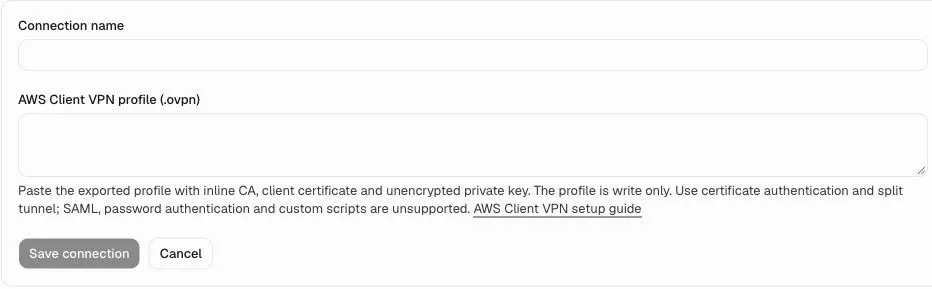
The profile field is deliberately empty here. Composal encrypts saved profiles at rest and never displays or returns them.
The AWS Client VPN setup guide includes annotated screenshots, endpoint configuration, troubleshooting, and rotation and revocation steps.
Access your team controls
A dedicated client certificate gives your team a credential to rotate or revoke independently. For a narrow access boundary, use a dedicated endpoint with restricted routes, authorization rules, and service security groups. A certificate alone does not narrow a broadly authorized endpoint.
Disabling a connection in Verify prevents new runs from obtaining access. For immediate revocation, cancel active Verify runs and terminate their VPN sessions in AWS; revoke the certificate to prevent future connections.
This release supports mutual certificate authentication and split tunnel for VPN access. VPN connections requiring interactive SAML, password or MFA enrollment, and full-tunnel configurations, are unsupported. AWS endpoint and connection charges remain in your AWS account.
If your team uses a tailnet, Tailscale remains available in the same Private network card. Choose the connection that fits your environment, then let Verify test the user journey across it.