 Composal
Google test accounts
Set up a dedicated Google Workspace test account with passkeys, approved passwordless sign-in, or password and authenticator access.
Contents
Use a Google credential when your app offers Continue with Google. Use a dedicated Google Workspace test account. We recommend a dedicated passkey with passwordless sign-in when your organization's security policy permits it; password and authenticator sign-in remains available.
Which account to use
- A company Google Workspace account made for testing, such as
qa-agent@yourcompany.com. Your Workspace admin controls it, and it belongs to no real person. - Not a personal Gmail account. Google suspends personal accounts that sign in automatically from new browsers.
- Not signed in on any phone or tablet. When an account is on a device, Google sends "Is it you trying to sign in?" prompts to that device, and the agent cannot answer them.
Set up the account
- Ask your Google Workspace admin to create the user in an organizational unit used only for test accounts, and to allow 2-Step Verification for it.
- Sign in as that user once in your own browser and set a strong password.
- Open Google Account → Security → 2-Step Verification and turn it on.
- Under Authenticator, choose Set up authenticator, then Can't scan it?. Copy the setup key that Google shows. You add it to Composal in the next section.
- Finish setup by entering a code from any authenticator app that has the same key.
- Keep the dedicated passkey and administrator-approved recovery methods. Avoid second steps that need someone to approve a phone prompt, and sign the test account out of phones and tablets under Your devices.
Recommended: a dedicated passkey
For approved Workspace test accounts, we recommend starting with their dedicated organizational unit. Your administrator can instead apply the policy organization-wide when that scope is explicitly approved:
- In the Admin console, open Security → Authentication → Passwordless → Skip passwords. Select the organizational unit for test accounts, or the whole organization if that is your approved policy.
- Enable Allow users to skip their password and authenticate with a passkey, then choose Override or Save for the selected scope.
- Sign in as the test account. Open Google Account → Security & sign-in → How you sign in to Google, and turn on Skip password when possible.
Both the admin policy and the user's preference are needed. This does not remove the account's password. See Google's Workspace administrator instructions and Google's passkey account instructions.
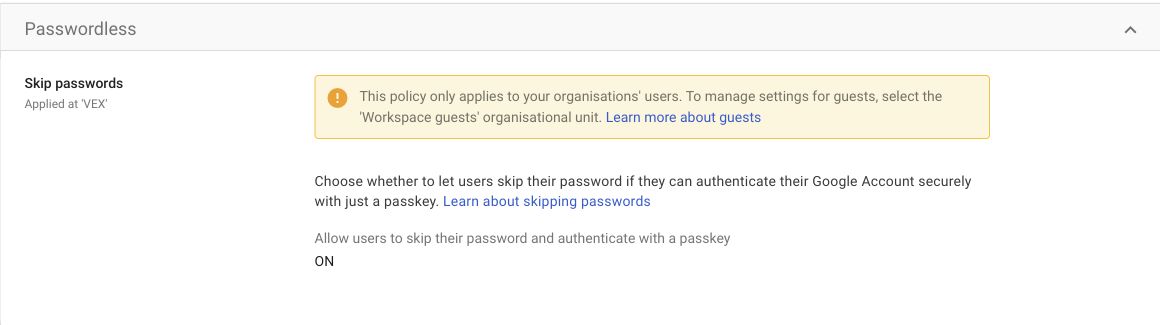
Example of the administrator policy enabled organization-wide. Select the scope approved by your administrator; a dedicated organizational unit can limit the rollout to test accounts.
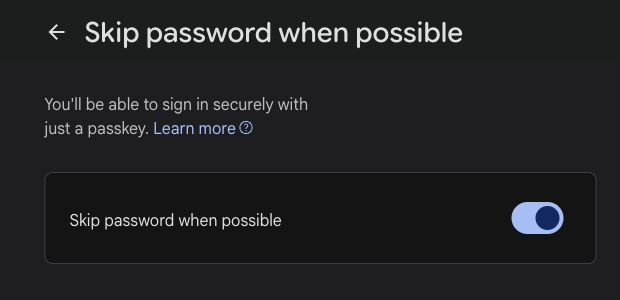
The test account's own Skip password when possible preference must also be on.
Then enroll a new dedicated passkey with Composal and verify a fresh sign-in. Enabling the switches does not create a key or establish that the runner can sign in. Complete every provider step before confirming SAVE; test a fresh Verify run before relying on passwordless access.
If your policy does not allow skipping passwords, keep password and passkey sign-in. Attach the key to the existing Google credential with --account so its password and authenticator remain available. The enrollment CLI requires a build that includes accounts enroll-passkey; check its --help before starting.
Add it to Composal
- Open your project's Credentials and choose Add Credential, or use Test access during setup.
- Choose Google under other sign-in methods.
- Enter the account's email address and password.
- Paste the setup key into Authenticator Secret. It is required for the Google credential method: agents use it to generate a fresh code whenever Google asks. Paste the key itself, not a six-digit code.
- Choose Save test account.
Composal encrypts the password and setup key.
Troubleshooting
- Google asks for a phone or shows "Verify it's you". Check whether Google requires a device prompt. Ask your Workspace administrator to review the test account's permitted second steps and recovery policy before using it for runs.
- Google says the browser may not be secure. Sign in to your app yourself, then save your app's session with Session sign-in instead. Google's own cookies are not accepted.
- The authenticator code is rejected. The setup key was copied wrongly or replaced. Set up the authenticator again in Google and paste the new key.
- A passkey is used but Google still asks for a password. Check the account's effective passwordless policy and the user's Skip password when possible preference. Until a complete fresh sign-in proves passwordless access, keep the existing Google credential with its saved password and authenticator.