 Composal
Pull request configuration
Choose when pull request tests run, who builds previews, and which test accounts sign in.
Contents
Set up Verify to test your app when a GitHub pull request changes. Choose when a test run starts and where Verify finds the version of your app to test.
A preview is a running copy of your app with the pull request's changes. Verify needs a working preview link before it can open a browser and test those changes.
This guide covers GitHub pull requests. For GitLab merge requests, use the GitLab setup guide.
Before you start
You need:
- Administrator access to your Composal organization, with Verify enabled.
- A GitHub repository connected to your organization. On PR Testing, use Connect GitHub Repository if it is missing.
- Saved Scenarios: the tests Verify can choose from for each change.
- A Verify environment in the same project. This holds the test setup, including people to test as, login credentials, and safety settings.
Open Verify → your project → PR Testing. If testing is not set up, administrators see Set Up PR Testing. It asks one question at a time, lists the steps beside it, and has Back and Next buttons:
- Under Repositories, click Add repositories, select one or more connected repositories, and click Add. Click anywhere on a repository row to open its settings. Each has a readable URL ending in
/pr-testing/<source-org>/<repository>. Use Back to repositories to return to the list. If the project has only one repository, PR Testing opens its settings directly; Add repositories is available there too. They share the project’s scenarios, personas, and credentials. - How does Verify get the preview URL? See Choose who builds previews.
- Add Composal to Your Workflow, only when your CI builds previews.
- Which Test Accounts Work on Your PR Previews?, only when more than one environment fits. See Choose the test setup.
- Turn On PR Testing, where you review the settings and turn testing on.
Members see the saved settings but cannot change them.
The screenshots show the real settings page in a local example project. Replace the example names with your own project, environment, and deployment settings.
Set up with your coding agent
Your coding agent can answer the setup questions from your repository. On Set Up PR Testing, choose Copy Setup Prompt under Set Up With Your Agent and paste it into your agent from the repository's checkout. Once PR testing is set up, the same prompt is behind Set Up With Your Agent at the top of the page.
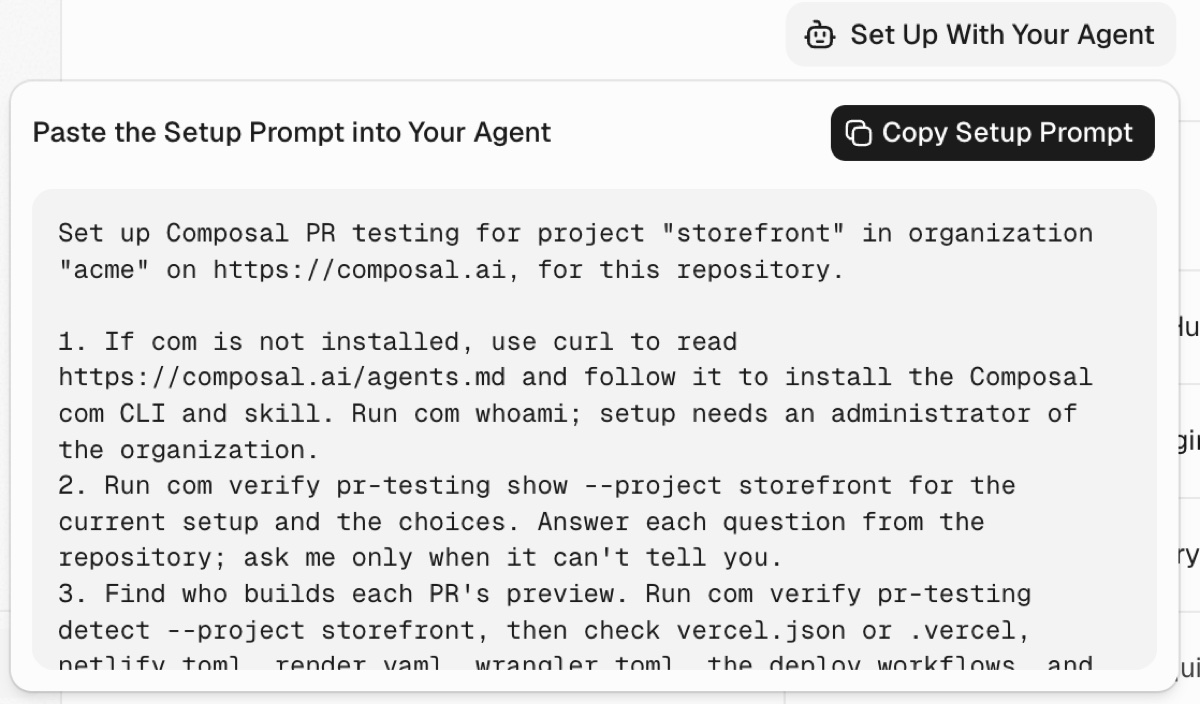
The agent reads your deploy configuration and recent PRs to find who builds previews, saves the setup, adds the workflow step and token when your CI builds previews, and requests a run on a recent PR to confirm.
From the CLI
com verify pr-testing takes the same answers as the page:
com verify pr-testing show --project shop
com verify pr-testing detect --project shop
com verify pr-testing setup --project shop --previews hosting --deployment Preview --on
If your CLI does not recognize pr-testing, run com update once, or use the
Composal MCP setup tools. When a project tests several repositories, pass
--repository <repository> to detect and setup, and --repo <repository>
when requesting a PR run.
A frontend repository can use Cloudflare Pages comment previews while a backend repository uses CI previews in the same project. Configure each separately. The backend CI workflow supplies the ready UI preview URL for its exact PR head; both repositories use the project’s scenarios and access. The URL may point to staging or a per-PR UI environment; it need not be served by the source repository. Copy the GitHub Actions step from the selected repository’s PR Testing page; it uses an action revision that sends both the project and the workflow repository.
| Answer | Flags |
|---|---|
| Who builds previews | --previews hosting, ci or composal |
| A hosting service's GitHub deployment | --deployment Preview |
| A hosting service's bot comment | --bot netlify[bot] --links 'https://deploy-preview-*--shop.netlify.app', or --link-pattern with the expression detect prints |
| Composal previews | --preview-profile and --service |
| Test accounts | --accounts <environment> |
| On or off | --on or --off |
| When runs start | --run-on-push, --run-on-ready, --run-on-label <label>, --run-on-comment, each with a --no- form |
| PR check and limits | --pr-check or --no-pr-check, --max-minutes, --skip-path |
| Demo videos | --demo-videos or --no-demo-videos |
Answers you leave out keep their saved values. A new setup stays off until you pass --on. If an answer is missing, the command names it and lists the choices. Add --json for output an agent can read.
From the MCP server
The Composal MCP server has the same setup as tools: verify_read_pr_testing reads the setup and its choices, verify_detect_pr_previews looks for previews on recent PRs, and verify_save_pr_testing saves the answers. verify_check_pr then requests a run on a PR.
How a pull request is tested
- A GitHub event, a manual request, or your workflow starts verification.
- Verify checks the changes. It can skip changes you have explicitly excluded, such as documentation-only edits.
- Verify waits for a preview from the source you choose below.
- Verify selects saved Scenarios related to the changes and runs them in a browser using the chosen environment's test setup.
- A results comment appears on the PR with links to the run, findings, and recordings. The optional GitHub check reports the outcome.
- With Demo Videos on, the comment also gets a short recorded walkthrough of the change.
The preview must contain the changes being tested. A working link to an older version of your app is not enough.
Scenario selection considers the saved steps and expected outcomes. An edit to one documentation paragraph should not select unrelated navigation checks just because they visit the same article. Changes to shared code, routes or page loading can require regression checks for behavior that is meant to stay the same. A selected scenario verifies only its authored outcomes; nearby coverage does not prove a new feature works.
Choose when to run
The Trigger row controls which GitHub events can start a run. Choose Change to open the trigger switches. You can turn on several triggers.
| Setting | When it starts a run |
|---|---|
| When a PR Opens or Gets New Commits | When a PR opens, reopens, or gets new commits. |
| When a Draft PR Is Ready | When someone changes a draft PR to ready for review. |
| When a Label Is Added | When someone adds the label you enter, such as qa. |
| On a Comment Command | When a repository owner, member, or collaborator posts /qa, /verify, or /composal-verify as the whole comment. |
Run Tests Automatically is on for new setups, with the push and ready-for-review triggers. Label and comment-command triggers are off by default. Draft PRs wait until they are ready for review.
After setup, the switch at the top of the summary card turns automatic testing on or off. When it is off, Trigger shows Paused. You can still test PRs by hand or from your workflow.
A comment command requests a run. Your preview setup below supplies the link that a requested run will test.
Choose who builds previews
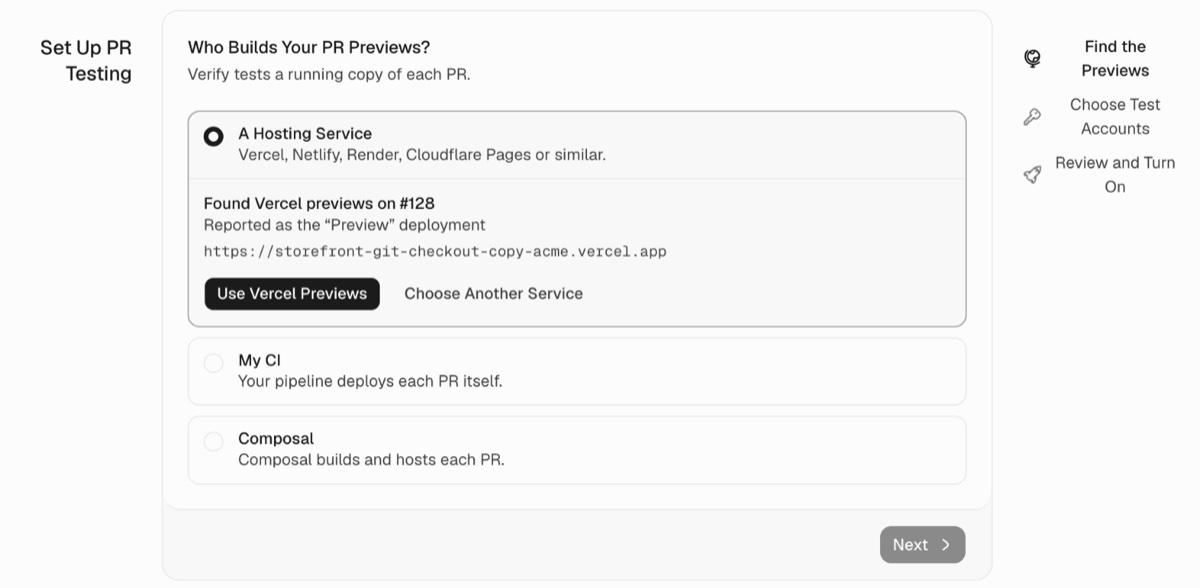
Who Builds Your PR Previews? has three answers. Pick the one that matches how your team deploys previews:
- A Hosting Service: a host such as Vercel or Netlify deploys each PR. Composal finds the preview from a GitHub deployment or a bot comment.
- My CI: your workflow deploys the PR and sends Composal the link.
- Composal: Composal builds and deploys the PR from a hosted-app preview profile.
Each guide covers the setup and what to check when a preview is not found.
Choose the test setup
A Verify environment holds the setup the browser needs: who to test as, login credentials, and safety settings.
For a hosting service or Composal, an external environment template in the same project fits; Verify uses its setup for each new preview URL. For your CI, any environment in the project fits. When only one fits, Verify uses it without asking. When more than one fits, Which Test Accounts Work on Your PR Previews? lists each environment with its test account names. The Sign-in row shows the choice.
If no environment fits, Turn On PR Testing stays disabled and the Sign-in row links to Add Test Accounts. Save test logins in Credentials, and check that the browser can reach your preview. Private apps may also need private-network access.
Choose Change on the Limits row to set Skip PRs That Only Change and Time Limit (Minutes). A PR is skipped for path exclusions only when every changed path matches. Browser parallelism follows your organization's limit.
Add a demo video to the PR comment
Turn on Demo Videos in the PR Testing summary to record a short walkthrough of each PR. It is off by default.
Once the PR's preview is ready, one browser agent reads the PR description and changes, performs the change's main flow on the preview with your test account, and checks the result on screen. It does not need a matching saved Scenario. The PR comment's Demo section then shows one sentence describing what the recording confirmed and a play card. The link opens the recording in Composal; anyone with the link can watch it without signing in, and it stops working when the recording's retention ends.
If the walkthrough cannot confirm the change, the comment says the demo is unavailable and why. Demo results never change scenario results or the PR check. PRs that only change skipped paths get no demo.
A project admin can revoke every demo link the PR has published, including earlier commits' demos, with DELETE /api/v1/organizations/{organization}/verify/pull_requests/{id}/demo_share, or replace the current demo's link with POST to the same path. A revoked link returns not found and the comment drops the play card.
Turn on testing and try a PR
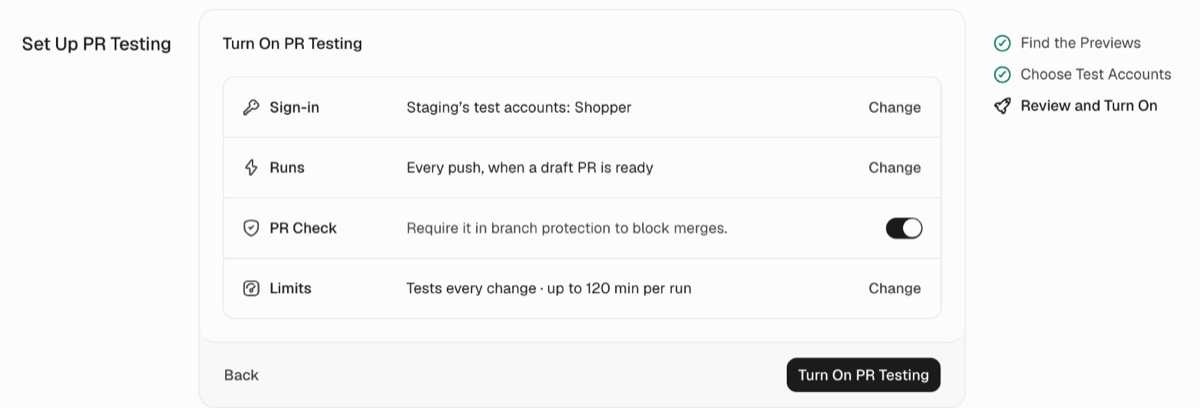
- On the last step, review the rows and choose Turn On PR Testing. If you switched off Trigger → Run Tests Automatically, the button reads Set Up PR Testing and saves the setup paused. The page then shows a summary card headed by the repository name.
- In Test a Pull Request Now, enter the number of an open, ready-for-review PR.
- Choose Verify PR and follow the run to see whether it is waiting, testing, or finished.
- Open the results comment on GitHub to review the outcome and links to findings and recordings.
To change a setting later, choose Change on its row in the summary card: Previews, Sign-in, Trigger, or Limits. The controls open in place, with Cancel and Save.
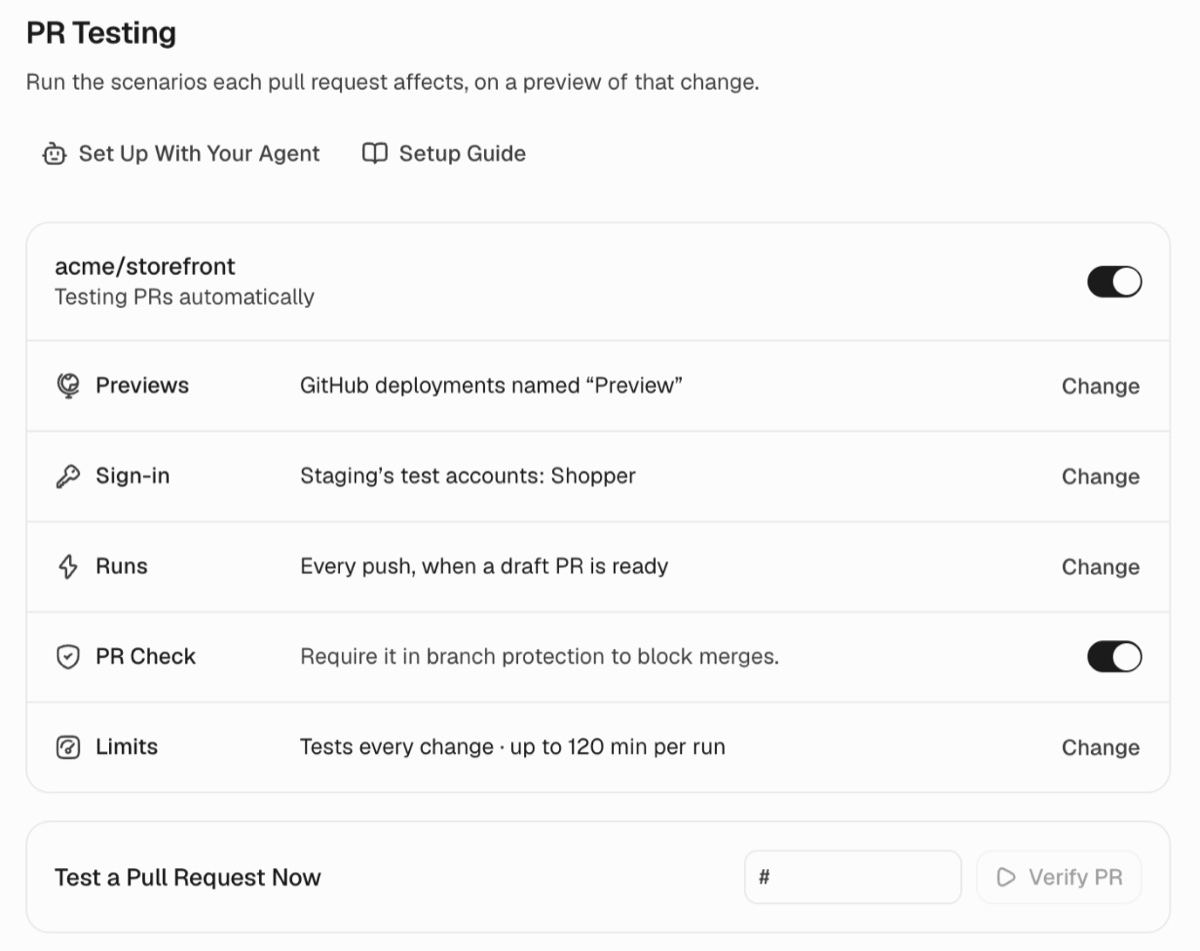
Keep the PR Check switch on if you want Verify to report a merge check. To make that check block merging, require Composal Verify in GitHub branch protection. See merge protection setup. If you turn the check off, the results comment and run history remain available.
If a run is waiting for a preview
Open your preview source guide above for the checks specific to your deployment setup.
If no matching preview arrives within one hour, the run is blocked. Fix the preview setup, then request a new run. An accepted workflow step or a reachable preview URL alone does not mean the tests passed; read the run's final outcome.
Continue with GitHub Actions and CLI instructions, writing Scenarios, or setting up test credentials.